By using oval shape you can reshape it to circle or ellipse.
Working with oval
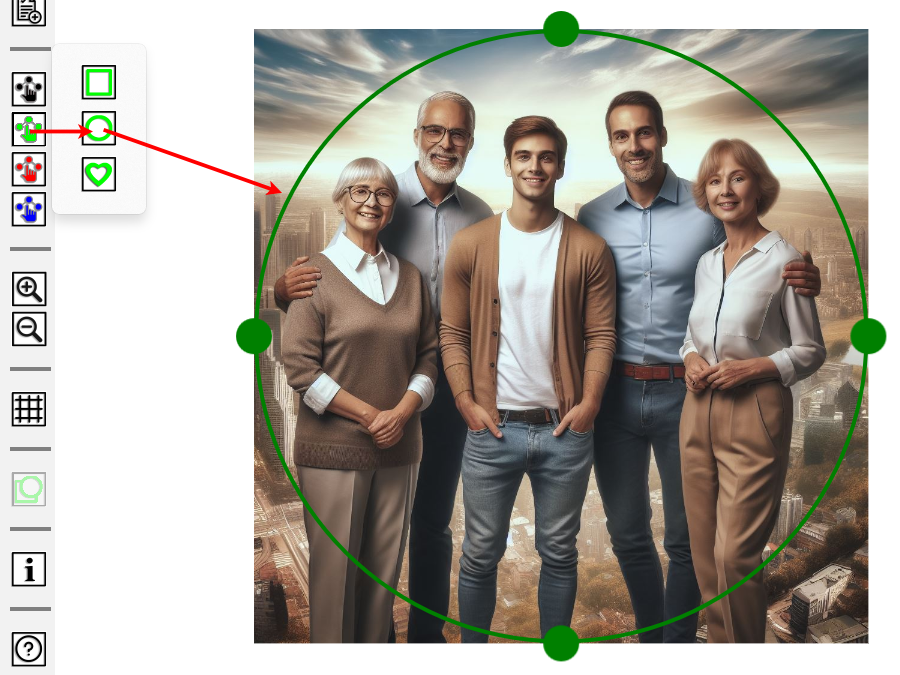
Start from selecting color you like
 and then select rectangle shape.
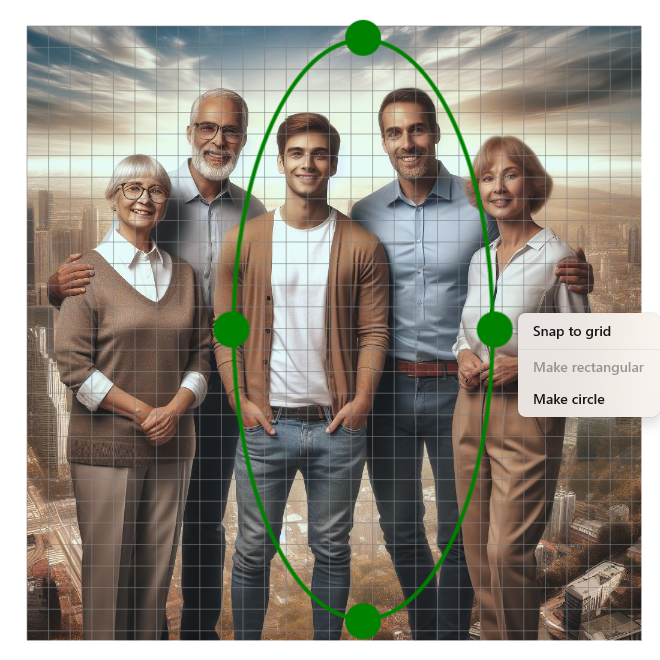
 There are four grippers in each side of oval to resize and reshape it

You can move selection using mouse - simply click and hold your mouse inside the selection area and drag it to the desired location. Don't worry about perfect shapes: focus on selecting the specific part of the image you want, and refine the selection later if needed..
Use
 to show and hide grid.
Right-click (or long-press) on the gripper to access a menu: "Snap to grid" menu item aligns the active gripper
to the nearest grid point, "Make circle" menu item creates a perfect rectangle while keeping the
active gripper in place.
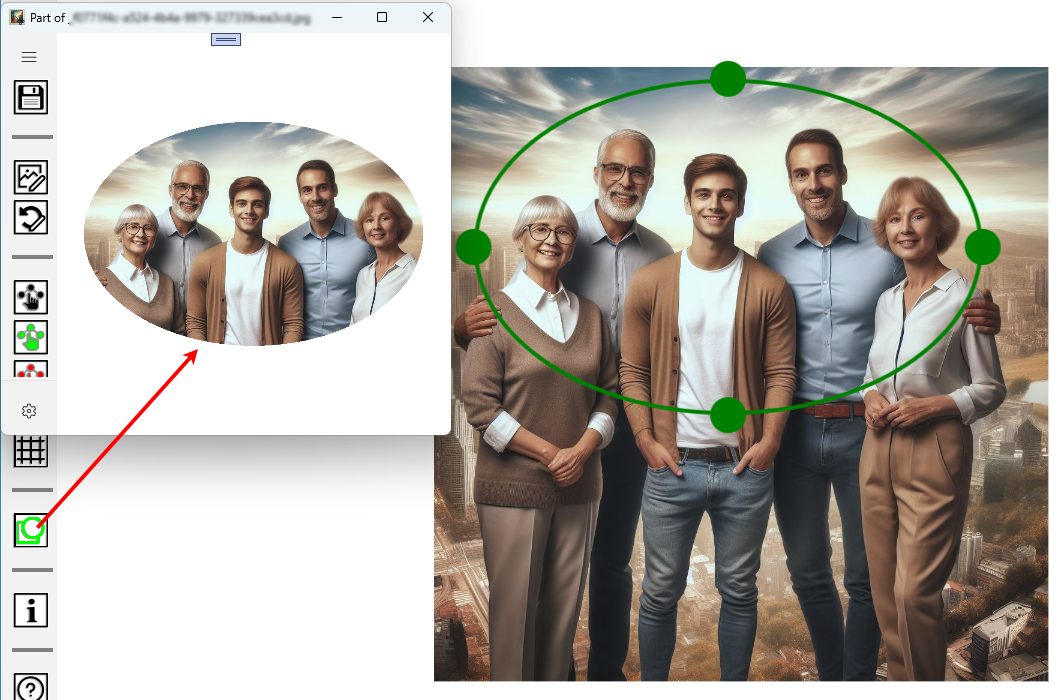
When you are satisfied with selection use
 to open new image-editing window and copy selection to it. In the upper-left
corner of this new window find the save button
to open new image-editing window and copy selection to it. In the upper-left
corner of this new window find the save button
 to save your work.