Your creativity is not limited with content selection - you can experiment with this content presentation as well.
Here, the gloves come off. Unleash your inner maverick with dedicated feathering and background manipulation tools.
These tools come on top of the comprehensive controls and functionalities you already have in the main window.
The possibilities are endless. Don't be afraid to experiment! This app is your canvas, and the only limit is your imagination.
We recomend to resize image-editing window to allow space for image and image-editing
controls.
Use  to show feathering, background and resizing controls.
Use  to undo image editing.
So, are you ready to create images that will leave your audience speechless?
Image editing
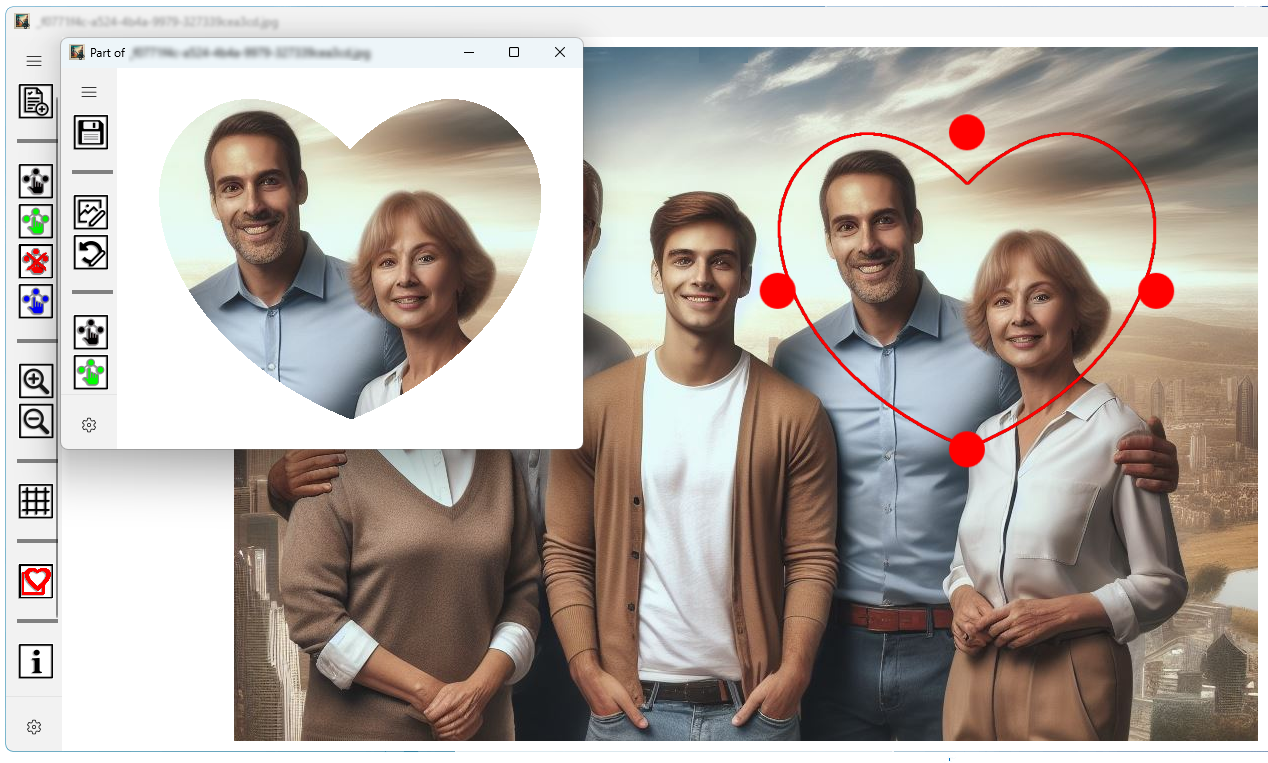
Let's use a heart shape selection as an example to illustrate the app's image-editing capabilities.
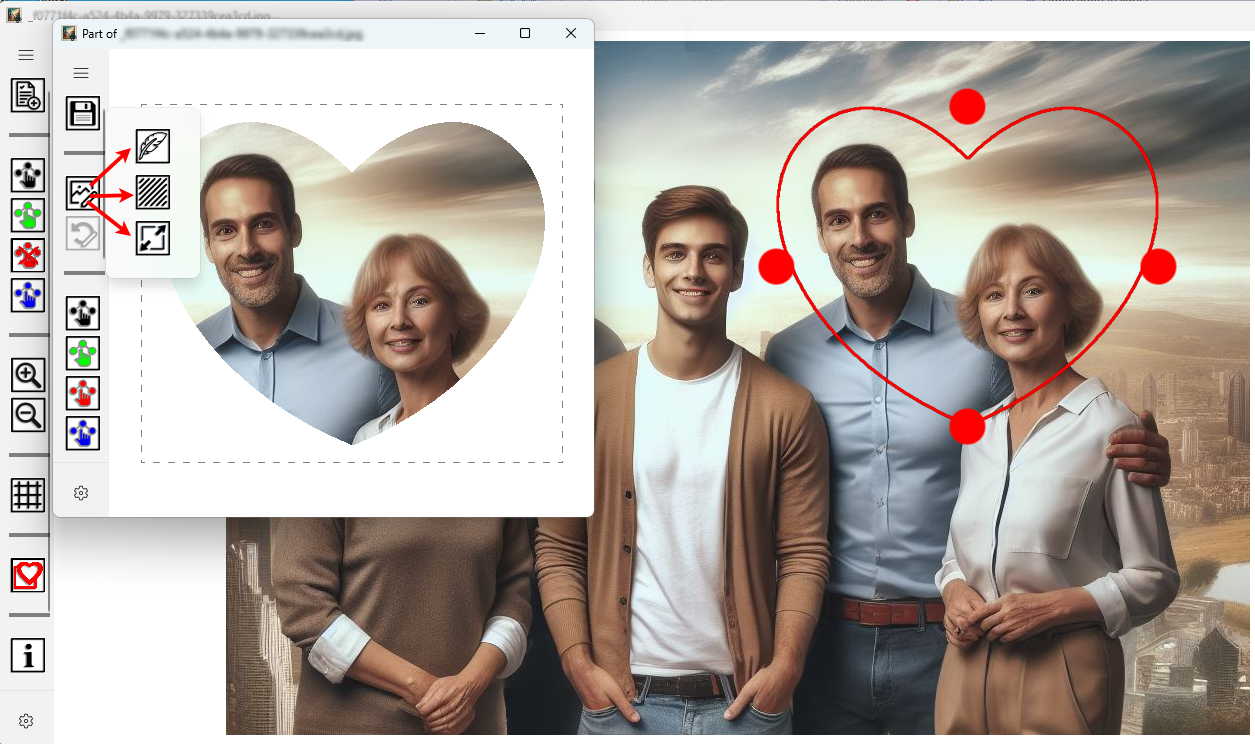
Clicking
reveals three additional buttons:
 to show feathering control,
 to show background control and
 to show resizing control.
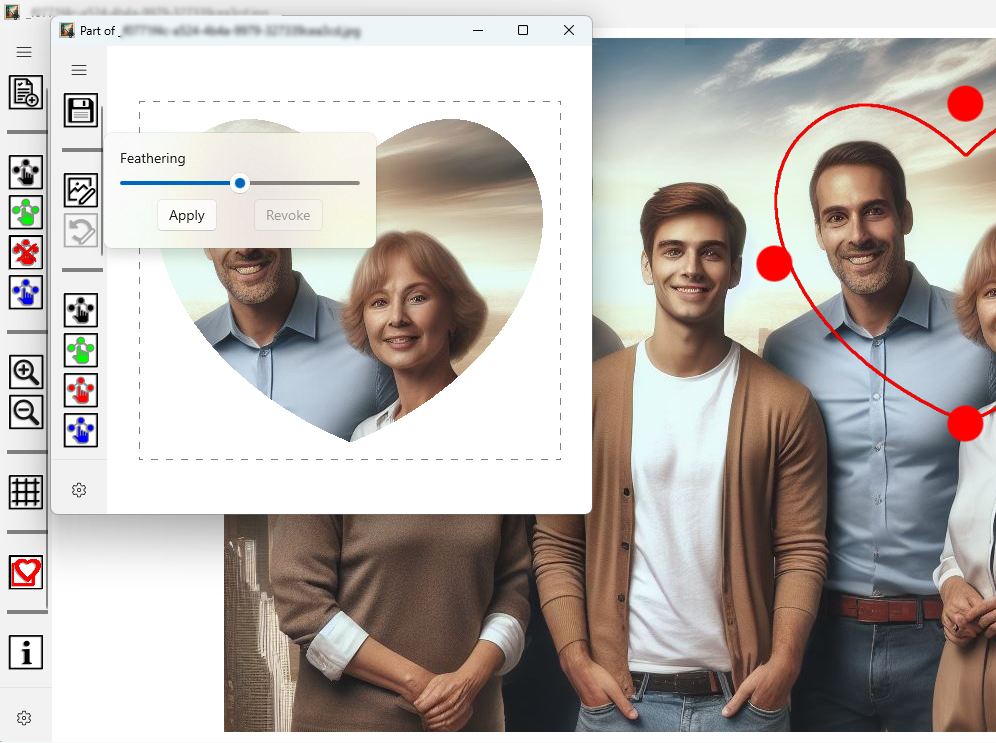
Use Apply or Revoke buttons on feathering control. Use slider to control feathering level. Feathering big images can take some time.
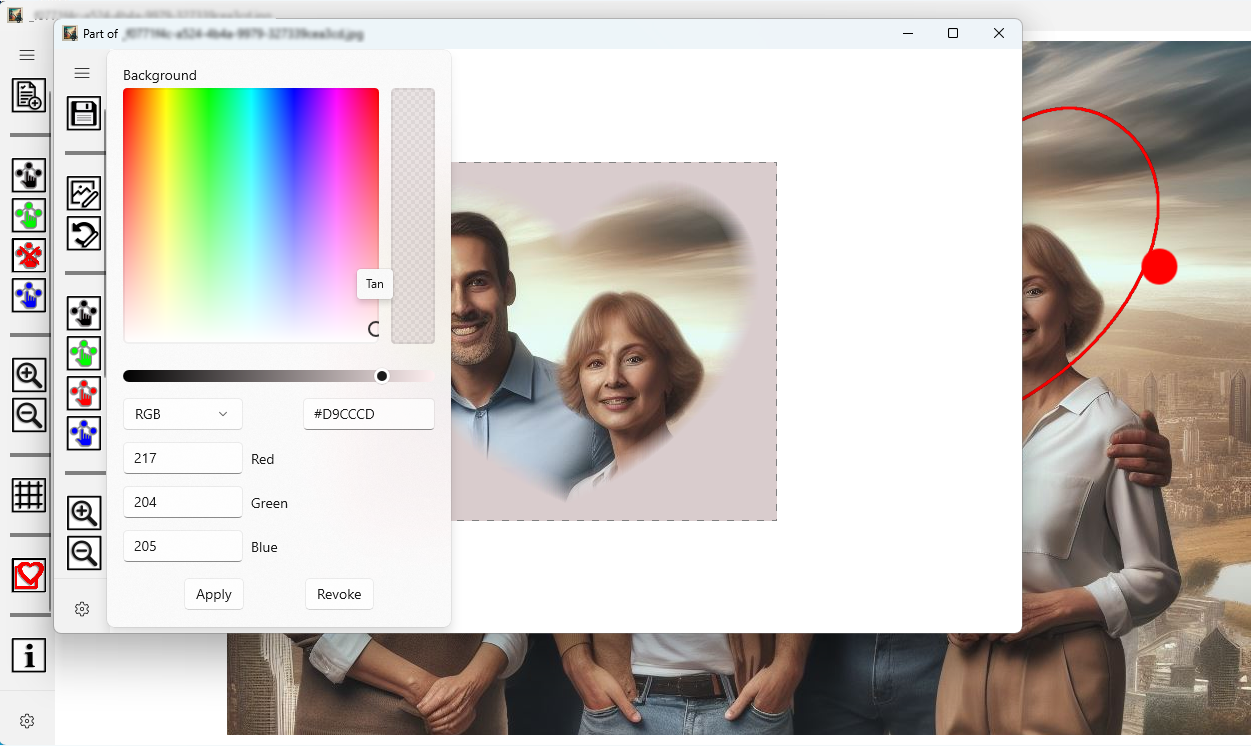
Use color selection tool to select background color and Apply or Revoke buttons.
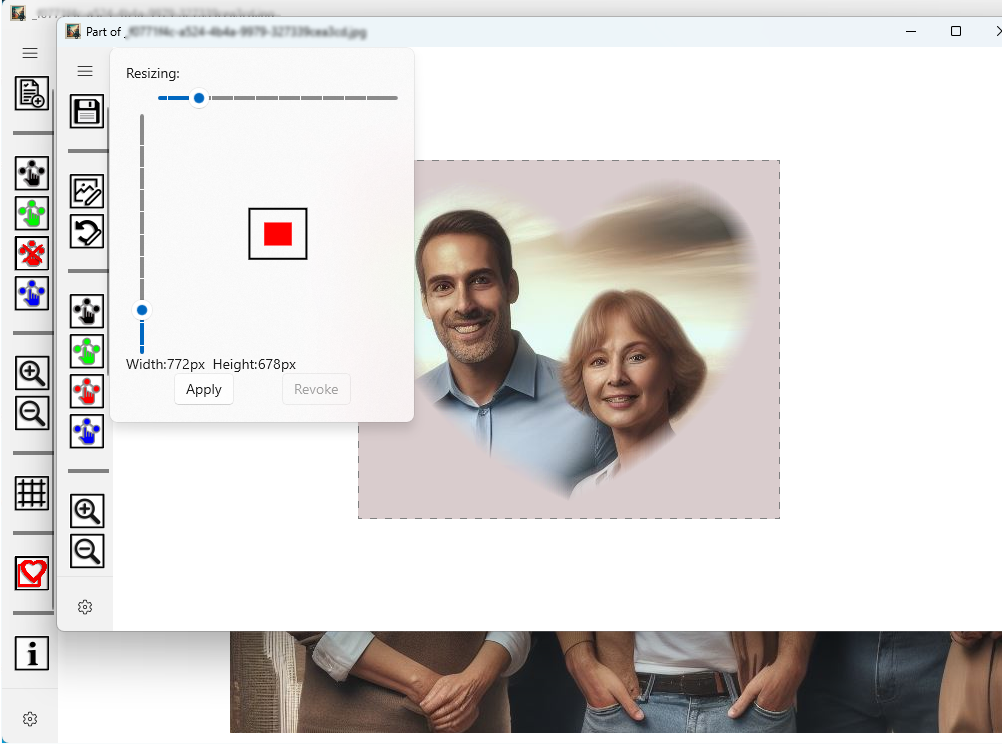
Drag the horizontal slider to adjust the canvas width. Drag the vertical slider to adjust the canvas height. Click "Apply" to confirm your changes or Revoke to go back.
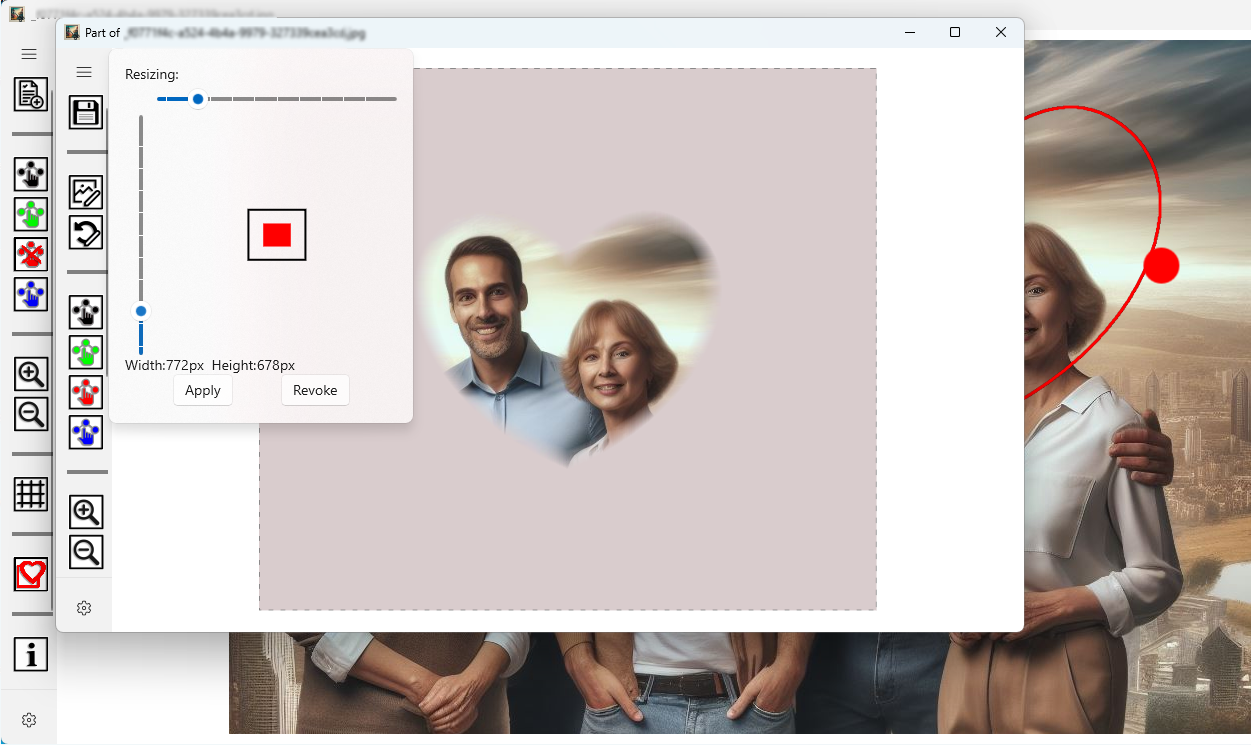
The app doesn't change the image size itself, but rather the size of the canvas it's displayed on.